In the tutorials on this site and in my books I recommend using the fugue icons set. This is a free set of icons from Yusuke Kamiyamane, a freelance designer from Tokyo. The set contains 3,570 icons and is a great way to add some nice visual touches to your application without much hassle.
But this isn't the only icon set available, and there's another option you may not know about. Read on for details.
Veronica asked:
Are there any built-in icons with PyQt5? I have searched the web and it seems like there are some but I can't find any examples of them being used. Does it depend on the situation? If so, then in which cases can I use an icon without downloading it first?
First we need to clarify what is meant by built-in icons — it can mean two different things depending on context — either Qt built-in, or system built-in (Linux only). I'll start with the Qt built-ins as that's cross-platform (they're available on Windows, macOS and Linux).
Qt Standard Icons (QStyle StandardPixmap)
Qt ships with a small set of standard icons you can use in any of your applications for common actions. These built-in icons are accessed through the QStyle.StandardPixmap enum and retrieved using style().standardIcon(). They're available on all platforms — Windows, macOS, and Linux — making them a convenient choice when you need common UI icons without bundling external assets.
The following Python script displays all the built-in Qt standard icons in a grid layout:
- PyQt5
- PyQt6
- PySide2
- PySide6
import sys

from PyQt5.QtWidgets import QApplication, QGridLayout, QPushButton, QStyle, QWidget


class Window(QWidget):
    def __init__(self):
        super().__init__()

        icons = sorted([attr for attr in dir(QStyle) if attr.startswith("SP_")])
        layout = QGridLayout()

        for n, name in enumerate(icons):
            btn = QPushButton(name)

            pixmapi = getattr(QStyle, name)
            icon = self.style().standardIcon(pixmapi)
            btn.setIcon(icon)
            layout.addWidget(btn, n // 4, n % 4)

        self.setLayout(layout)


app = QApplication(sys.argv)

w = Window()
w.show()

app.exec_()
import sys

from PyQt6.QtWidgets import (QApplication, QGridLayout, QPushButton, QStyle,
                             QWidget)


class Window(QWidget):
    def __init__(self):
        super().__init__()

        icons = sorted([attr for attr in dir(QStyle.StandardPixmap) if attr.startswith("SP_")])
        layout = QGridLayout()

        for n, name in enumerate(icons):
            btn = QPushButton(name)

            pixmapi = getattr(QStyle.StandardPixmap, name)
            icon = self.style().standardIcon(pixmapi)
            btn.setIcon(icon)
            layout.addWidget(btn, int(n/4), int(n%4))

        self.setLayout(layout)


app = QApplication(sys.argv)

w = Window()
w.show()

app.exec()
import sys

from PySide2.QtWidgets import QApplication, QGridLayout, QPushButton, QStyle, QWidget


class Window(QWidget):
    def __init__(self):
        super().__init__()

        icons = sorted([attr for attr in dir(QStyle) if attr.startswith("SP_")])
        layout = QGridLayout()

        for n, name in enumerate(icons):
            btn = QPushButton(name)

            pixmapi = getattr(QStyle, name)
            icon = self.style().standardIcon(pixmapi)
            btn.setIcon(icon)
            layout.addWidget(btn, n // 4, n % 4)

        self.setLayout(layout)


app = QApplication(sys.argv)

w = Window()
w.show()

app.exec_()
import sys

from PySide6.QtWidgets import QApplication, QGridLayout, QPushButton, QStyle, QWidget


class Window(QWidget):
    def __init__(self):
        super().__init__()

        icons = sorted(
            [attr for attr in dir(QStyle.StandardPixmap) if attr.startswith("SP_")]
        )
        layout = QGridLayout()

        for n, name in enumerate(icons):
            btn = QPushButton(name)

            pixmapi = getattr(QStyle, name)
            icon = self.style().standardIcon(pixmapi)
            btn.setIcon(icon)
            layout.addWidget(btn, n // 4, n % 4)

        self.setLayout(layout)


app = QApplication(sys.argv)

w = Window()
w.show()

app.exec()
If you run this script you'll see the following window, listing all the available built-in Qt icons.
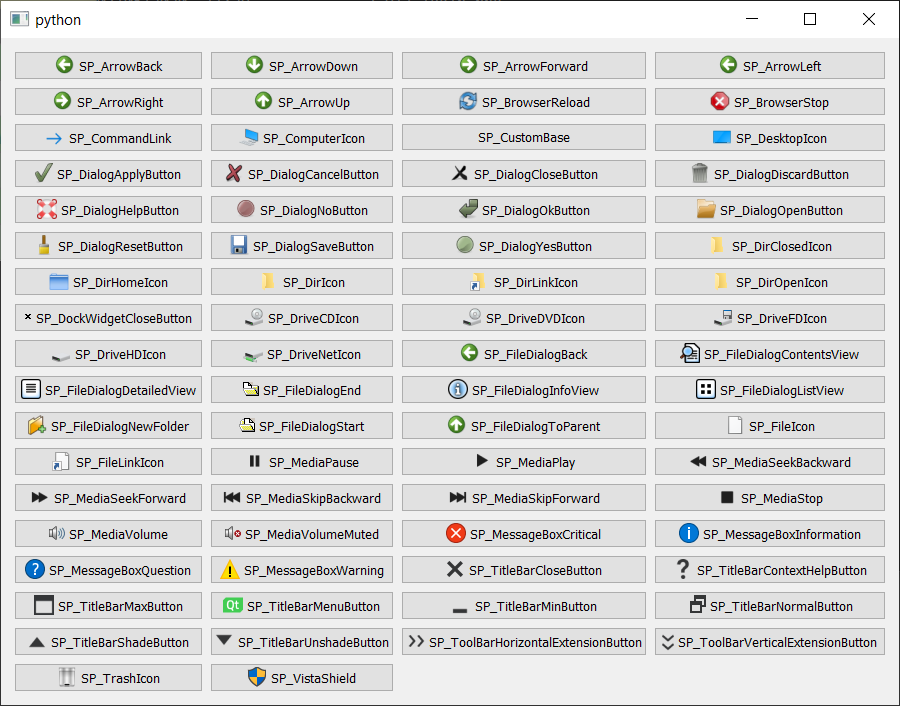 Qt's Built-in Icons — all QStyle.StandardPixmap icons shown with their names
Complete List of Qt Built-in Standard Icons (QStyle.StandardPixmap)
The full table of all QStyle.StandardPixmap icon names is below. You can use any of these in PyQt5, PyQt6, PySide2, or PySide6 applications.
| .. | .. | .. |
|---|---|---|
| SP_ArrowBack | SP_DirIcon | SP_MediaSkipBackward |
| SP_ArrowDown | SP_DirLinkIcon | SP_MediaSkipForward |
| SP_ArrowForward | SP_DirOpenIcon | SP_MediaStop |
| SP_ArrowLeft | SP_DockWidgetCloseButton | SP_MediaVolume |
| SP_ArrowRight | SP_DriveCDIcon | SP_MediaVolumeMuted |
| SP_ArrowUp | SP_DriveDVDIcon | SP_MessageBoxCritical |
| SP_BrowserReload | SP_DriveFDIcon | SP_MessageBoxInformation |
| SP_BrowserStop | SP_DriveHDIcon | SP_MessageBoxQuestion |
| SP_CommandLink | SP_DriveNetIcon | SP_MessageBoxWarning |
| SP_ComputerIcon | SP_FileDialogBack | SP_TitleBarCloseButton |
| SP_CustomBase | SP_FileDialogContentsView | SP_TitleBarContextHelpButton |
| SP_DesktopIcon | SP_FileDialogDetailedView | SP_TitleBarMaxButton |
| SP_DialogApplyButton | SP_FileDialogEnd | SP_TitleBarMenuButton |
| SP_DialogCancelButton | SP_FileDialogInfoView | SP_TitleBarMinButton |
| SP_DialogCloseButton | SP_FileDialogListView | SP_TitleBarNormalButton |
| SP_DialogDiscardButton | SP_FileDialogNewFolder | SP_TitleBarShadeButton |
| SP_DialogHelpButton | SP_FileDialogStart | SP_TitleBarUnshadeButton |
| SP_DialogNoButton | SP_FileDialogToParent | SP_ToolBarHorizontalExtensionButton |
| SP_DialogOkButton | SP_FileIcon | SP_ToolBarVerticalExtensionButton |
| SP_DialogResetButton | SP_FileLinkIcon | SP_TrashIcon |
| SP_DialogSaveButton | SP_MediaPause | SP_VistaShield |
| SP_DialogYesButton | SP_MediaPlay | |
| SP_DirClosedIcon | SP_MediaSeekBackward | |
| SP_DirHomeIcon | SP_MediaSeekForward |
How to Use a Specific Built-in QIcon in Your Application
In our script above to get the icons we're looking them up by name on the QStyle object, using getattr — but this is only necessary so we can iterate over the list of names and display the icon next to their name. If you want a specific icon you can access it directly. For example, to use the critical message box icon:
- Others
- PyQt6
pixmapi = QStyle.SP_MessageBoxCritical
icon = self.style().standardIcon(pixmapi)
pixmapi = QStyle.StandardPixmap.SP_MessageBoxCritical
icon = self.style().standardIcon(pixmapi)
In PyQt6 the flags must be accessed via QStyle.StandardPixmap. In other versions, they are available on QStyle itself.
Create GUI Applications with Python & Qt6 by Martin Fitzpatrick — (PySide6 Edition) The hands-on guide to making apps with Python — Save time and build better with this book. Over 15K copies sold.
Once you have the QIcon object, you can use it anywhere Qt expects an icon — on buttons, toolbars, menus, window titles, and more.
Free Desktop Theme Icons (Linux)
On Linux desktops there is something called the Free Desktop Specification which defines standard names for icons for specific actions.
If your application uses these specific icon names (and loads the icon from a "theme") then on Linux your application will use the current icon set which is enabled on the desktop. The idea is to make all applications have the same look & feel while remaining user configurable.
Setting Theme Icons in Qt Designer
To use Free Desktop theme icons within Qt Designer you would select the drop-down and choose "Set Icon From Theme..."

You then enter the name of the icon you want to use, e.g. document-new (the full list of valid names).

Setting Theme Icons in Python Code with QIcon.fromTheme()
If you're not using Qt Designer, you can set icons from a theme in your Python code using QIcon.fromTheme():
        icon = QtGui.QIcon.fromTheme("document-new")
        self.pushButton_n6.setIcon(icon)
If you're developing a cross-platform Python GUI application you'll still need your own icons for Windows & macOS, but by using these theme names you can ensure that your app looks native when run on Linux.
Does the
QIcon.fromTheme()method only work on Linux?
Qt themes work on all platforms, it's just that on Linux you get the theme for free. On non-Linux platforms you have to define your own icon theme from scratch. However, this is only really worth doing if you want to have a Linux-native look — for other use cases the QResource system is simpler.
Summary
There are two ways to use built-in icons in your PyQt or PySide applications without downloading external icon sets:
- Qt Standard Icons (QStyle.StandardPixmap) — A cross-platform set of common UI icons built into Qt itself, accessible via
style().standardIcon(). These work on Windows, macOS, and Linux. - Free Desktop Theme Icons — Linux-specific system icons accessed via
QIcon.fromTheme()that match the user's current desktop theme for a native look and feel.
For most cross-platform PyQt6 or PySide6 projects, bundling a dedicated icon set like Fugue gives you the most control over your app's appearance. But for quick prototypes or platform-specific tools, Qt's built-in icons are a convenient and dependency-free option.
Expert Python GUI Developer — Get your project finished, polished and released on schedule, with my proven strategies for building reliable, maintainable and shippable software.
